What Is LETRS Training
LETRS, which stands for Language Essentials for Teachers of Reading and Spelling, is one of the most widely used professional development programs for literacy educators in the United States. It gives teachers a deep, research-backed foundation in how reading works — covering phonics, phonemic awareness, fluency, vocabulary, and comprehension in a structured, science-based way. School districts across the country have invested heavily in this program because the evidence behind it is genuinely strong.
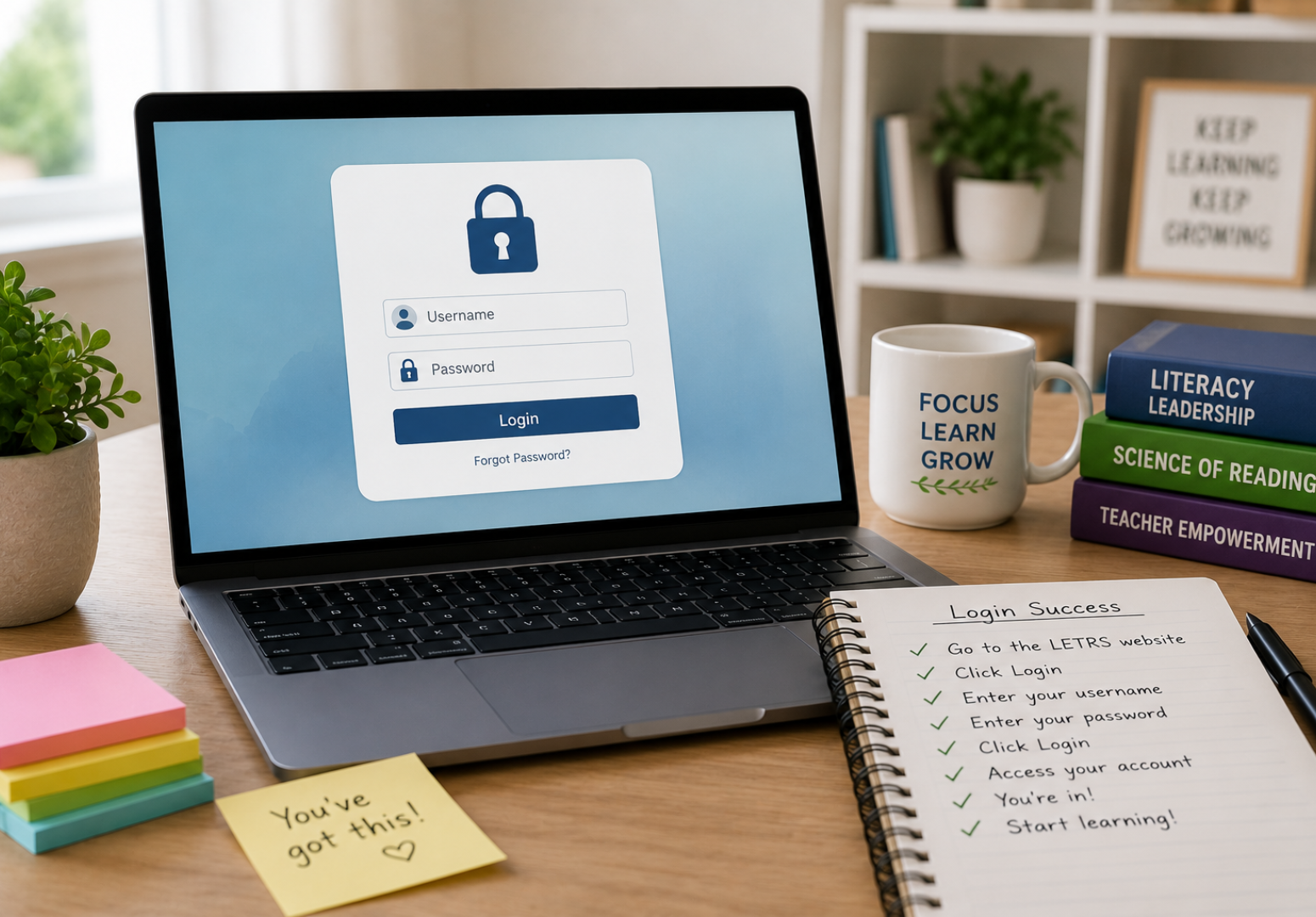
The program is delivered primarily through an online platform, which means the LETRS login process is your entry point into all of that professional learning. Whether you are a new user setting up your account for the first time or a returning educator trying to pick up where you left off, knowing how the login system works saves you real time and real frustration. Getting stuck at the door before the learning even begins is one of those problems that should not happen, but it does — often.
LETRS Login Getting Started
Before you can complete your first LETRS login, you need to have received an invitation or access credentials from your school or district administrator. LETRS accounts are not self-created — they are provisioned through Lexia Learning, the platform that hosts the program. Your district purchases access and then assigns licenses to individual teachers, who receive an email invitation to activate their account. For a broader look at how digital learning platforms support educators, this guide on resources for distance learning covers several useful tools worth knowing.
Once you receive that invitation email, the activation window is typically limited, so it is worth completing the setup promptly. The email will contain a link to set your password and confirm your account details. After that initial activation, your LETRS login credentials are set and you can access the platform anytime through the Lexia Learning portal. Keeping track of that login email address from the start prevents a lot of headaches later.
Finding the Correct Login Page
This sounds basic, but it is one of the most common sources of confusion. There is more than one Lexia product, and each has its own portal. Teachers sometimes end up on the wrong login page and then spend time troubleshooting an error that is simply caused by being in the wrong place. The correct URL for LETRS login is through the Lexia Learning educator platform, not the student-facing Lexia Core5 portal.
Bookmarking the correct login page after your first successful access is genuinely one of the most useful things you can do. It eliminates the risk of landing on the wrong portal or a phishing site that mimics the login page. If you are ever unsure whether you are on the right page, check that the URL matches the official Lexia Learning domain and that the page loads with a secure HTTPS connection before entering any credentials.
Setting Up Your Password Correctly
Password setup is where a surprising number of first-time users run into problems with their LETRS login. Lexia Learning has specific password requirements — a minimum character count, a mix of uppercase and lowercase letters, at least one number, and typically at least one special character. If your chosen password does not meet all of these requirements, the system will reject it, sometimes without a clearly worded explanation of exactly what is missing.
The safest approach is to use a password manager from the very beginning. Generate a strong password that meets all requirements, save it immediately, and you will never have to go through a password reset just because you forgot what you typed in during activation. Teachers managing multiple educational platforms — and most do — benefit enormously from having all credentials stored in one secure, accessible place rather than scattered across sticky notes and email drafts.
Common LETRS Login Errors Explained
A few error messages come up repeatedly when educators reach out for help with LETRS login problems. The most common is the “invalid credentials” error, which usually means either the email address or password is entered incorrectly. It sounds obvious, but email addresses with dots, dashes, or unusual domain structures are easy to mistype, especially when typing quickly on a phone or tablet.
Another frequent issue is the “account not found” message, which typically means the user is trying to log in before their district administrator has fully activated their license. In this case, the fix is not on your end at all — you need to contact your administrator and confirm that your account has been provisioned and your license assigned. Trying to troubleshoot a login that has not been activated yet is a frustrating loop that only an admin can break.
Browser-related errors are also worth knowing about. LETRS on the Lexia platform works best on updated versions of Chrome or Edge. If you are using an outdated browser, an unsupported browser like Internet Explorer, or a browser with aggressive privacy settings blocking cookies, login problems are likely. Clearing your cache and cookies before attempting to log in resolves a large percentage of browser-based login issues.
LETRS Login on Mobile Devices
Most educators do at least some of their professional development work on phones or tablets, and the LETRS login experience on mobile is slightly different from desktop. The Lexia Learning platform is browser-based, which means you do not need a dedicated app to access it on mobile — you log in through your mobile browser the same way you would on a computer.
That said, the experience on a small screen is not always ideal for completing actual LETRS units, which involve video content, reading passages, and interactive exercises. Many teachers find it more comfortable to use mobile access for checking progress or reviewing notes, and reserve the full unit work for a desktop or laptop where the screen real estate makes the content easier to engage with. If you do use mobile regularly, make sure your browser is updated and that cookies are enabled, since the platform needs those to maintain your session.
What to Do When Login Fails
When your LETRS login genuinely is not working and you have already tried the basics — correct URL, correct credentials, updated browser — the next step is the password reset process. The reset link is on the login page itself and sends a reset email to the address associated with your account. Check your spam folder if the email does not arrive within a few minutes, because automated emails from educational platforms commonly get filtered there.
According to the International Literacy Association, continuous professional development in literacy is one of the strongest predictors of improved student reading outcomes. That context matters here — when login issues prevent teachers from accessing their LETRS training, there is a real downstream impact on classroom instruction. Resolving access problems quickly is not just a technical issue, it is an instructional priority. If a password reset does not solve the problem, the next contact point is your district’s LETRS coordinator or Lexia Learning’s support team directly.
Contacting Lexia Learning Support
Lexia Learning has a dedicated support team for platform issues, including LETRS login problems that cannot be resolved through standard troubleshooting. When you contact support, having a few pieces of information ready makes the process significantly faster: your registered email address, your district name, a description of the error message you are seeing, and the browser and device you are using. Support staff can look up your account, verify your license status, and walk you through account recovery if needed.
Response times vary depending on the time of year. At the start of the school year, when districts are activating large numbers of new accounts simultaneously, support volume is high and wait times are longer. If your issue is urgent, checking whether your district has a dedicated Lexia implementation contact can sometimes get you a faster resolution than going through general support. Many larger districts have someone whose job specifically includes managing the LETRS platform access for staff.
LETRS Login for Administrators
District and school administrators have a different level of access than individual teacher users, and the admin LETRS login experience reflects that. Administrators log into the same Lexia Learning platform but access a management dashboard where they can see all assigned licenses, track completion progress across their staff, assign or reassign units, and manage user accounts. This is a powerful view that teachers do not have access to from their individual accounts.
If you are an administrator setting up LETRS access for a new cohort of teachers, the process involves uploading staff rosters, assigning licenses, and triggering the invitation emails that start each teacher’s account activation. Doing this in advance — before professional development sessions are scheduled — gives teachers time to complete activation and do a test login before they need to access the platform for the first time during a training day. Rushed activation on the day of a PD session is a recipe for a frustrating start.
Keeping Your Account Secure
Account security matters more than most people think when it comes to professional learning platforms. Your LETRS login credentials give access to your professional development record, your completed units, your assessment results, and potentially sensitive information tied to your employment. Using a strong, unique password and not sharing your credentials with colleagues — even well-meaning ones — keeps that record accurate and secure.
Some districts use single sign-on (SSO) to simplify the login process for staff. With SSO, your LETRS login is linked to your district Google or Microsoft account, which means you log in once with your school credentials and gain access to multiple platforms without managing separate passwords. If your district uses SSO, the setup process is slightly different — your IT department handles the integration and you may not need to set a separate Lexia password at all.
Tracking Progress After Login
Once you are successfully logged in, the platform gives you a clear view of your LETRS progress — which units you have completed, which assessments you have passed, and where you are in the overall training sequence. This progress tracking is one of the most valuable features of the platform because it makes professional development visible and accountable in a way that in-person workshops simply cannot replicate.
Teachers working through LETRS at their own pace appreciate being able to log back in and pick up exactly where they left off. The platform saves your place within units, so you do not have to restart a video or re-read a passage after closing out of a session. That continuity makes it significantly easier to fit professional learning into the fractured, interrupted schedule that most teachers actually work with.
LETRS Login and Unit Completion
Completing LETRS units requires more than just logging in and clicking through content. The program includes reading assignments, video lessons, reflection activities, and knowledge checks at the end of each unit. All of this is tracked through your account, and completion requires engaging with the material rather than simply opening it. Skipping through videos or leaving pages open without interacting with them will not register as completed work.
This matters because many districts tie LETRS completion to salary advancement, certification requirements, or professional development hour credits. Making sure your progress is actually being recorded correctly requires checking your account dashboard periodically rather than assuming completion has been logged. If something you finished is not showing as complete, logging out and back in sometimes refreshes the record, and contacting support can resolve more persistent tracking issues.
Troubleshooting Slow Platform Performance
Slow loading times inside the LETRS platform are a separate issue from login problems but worth addressing here because they affect usability significantly. Video content in particular can buffer or stall if your internet connection is slow or unstable. If you are working from home on a shared network, trying to access LETRS during peak household usage hours — evenings when everyone is streaming — is going to produce a worse experience than accessing it during quieter times.
Clearing your browser cache regularly also helps with general platform performance, not just login errors. Cached data can conflict with updated platform files and cause pages to load incorrectly or features to stop working properly. Making cache-clearing a monthly habit keeps the platform running smoothly without requiring any major troubleshooting effort on your part.
LETRS Login Best Practices
A few habits make the ongoing LETRS login experience much smoother over time. Saving your login page as a bookmark, using a password manager, keeping your browser updated, and logging out properly at the end of each session rather than just closing the tab — these small practices prevent the majority of common login issues before they start.
If you share a computer with other users, always log out of your LETRS account when finished rather than relying on the session to expire naturally. Shared computers with autofill enabled can sometimes log in as the wrong user if previous sessions were not properly closed. Protecting your own account record from accidental interference is worth that extra two seconds at the end of a session.
FAQ
Why is my LETRS login not working after I reset my password?
Password resets sometimes take a few minutes to fully process through the system. Wait five minutes after completing the reset before attempting to log in again. Also confirm you are using the new password, not the old one that your browser may have autofilled. Clearing your browser’s autofill data for the Lexia site resolves this in most cases.
How do I get LETRS login access if I never received an invitation email?
Contact your school or district administrator first. They control license assignment and invitation sending. If the invitation was sent but never arrived, check your spam folder and ask the admin to resend it. In some cases, district email filters block automated messages from external platforms, which the IT department can resolve by allowlisting the Lexia Learning email domain.
Can I use my LETRS login on multiple devices?
Yes. Your account is cloud-based, so you can log in from any device with a supported browser. Just make sure you are not logged into the same account on multiple devices simultaneously, as this can sometimes cause session conflicts that log you out unexpectedly. Logging out of one device before switching to another keeps things running cleanly.
Does LETRS login expire if I do not use my account for a while?
Account access is tied to your district’s license period rather than individual activity. If your district’s subscription is active, your account remains accessible regardless of how long it has been since your last login. However, if your district’s license has lapsed or if you have moved to a different district, your previous account access may no longer be valid and you would need new credentials from your current employer.
Conclusion of LETRS Login
LETRS login is the starting point for some of the most impactful professional development available to literacy educators today. The program is rigorous, the content is grounded in decades of reading science, and the structured online format makes it possible for teachers to work through deep material at a pace that fits their real lives. None of that value is accessible if the login process becomes a wall rather than a door.
The steps and troubleshooting strategies covered in this article address the most common points where educators get stuck with LETRS login — from initial activation through ongoing access management. Most issues are solvable quickly once you know where to look and who to contact. The platform itself is well-designed once you are inside it, and the professional growth it supports is genuinely worth the occasional friction of dealing with a technical problem.
If your district has invested in LETRS for its teachers, getting comfortable with the login process and the platform navigation is one of the most practical ways to protect that investment. Confident, consistent access means more completed units, better literacy knowledge, and ultimately stronger outcomes for the students in your classroom. That chain from login to learning to impact is exactly why keeping your LETRS login working smoothly genuinely matters.